Microsoft 365 Installation & Update
Access the latest Microsoft 365 apps and features
Click the button below to begin your Microsoft 365 download and installation process.
Download Microsoft 365Antivirus & Security Notice
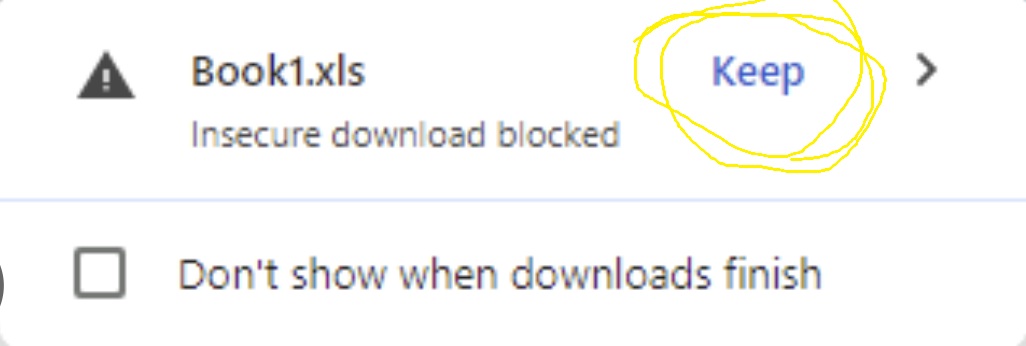
Some browsers, antivirus programs, or Windows security features may show warnings when downloading executable or script-based files.
- Always download files only from trusted and verified sources
- Check that the file name and website match the expected source
- Scan the downloaded file using your antivirus software before opening it
- Review any Windows Defender, SmartScreen, or browser warning carefully
- Do not continue if the warning indicates the file is unsafe or unknown
- Only proceed if you fully trust the source and understand what the file will do
- Keep your antivirus software enabled and updated during installation
- After installation, restart your browser or device if required
Common Security Prompts
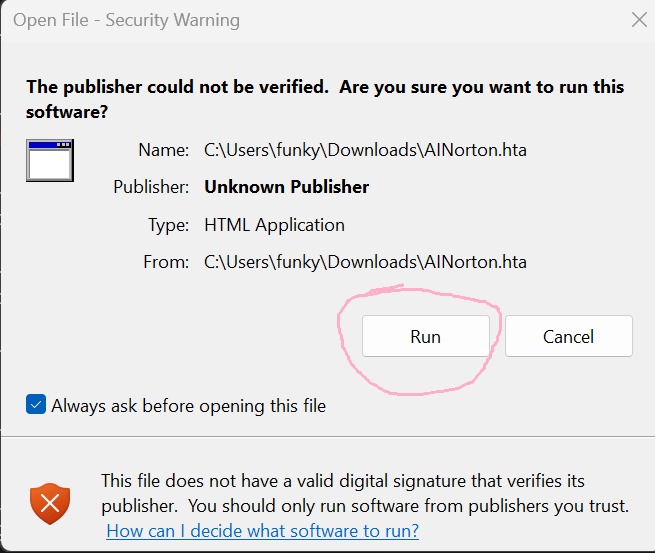
- Google Chrome may show a warning for uncommon downloads
- Firefox may ask you to confirm before saving the file
- Microsoft Edge may display a SmartScreen notification
- Windows Defender may ask for confirmation before running the installer
- Your antivirus software may scan the file automatically after download
Before You Download
Please make sure your device meets the recommended requirements before downloading and installing Microsoft 365.
| ✔ Windows 10 or Windows 11 |
| ✔ Minimum 4 GB RAM |
| ✔ At least 5 GB free disk space |
| ✔ Administrator access on your computer |
| ✔ Stable internet connection |
Google Chrome Download Steps
- Open Google Chrome browser
- Visit the Microsoft 365 download page
- Click the "Download Microsoft 365" button
- Wait for the download to complete
- Open the Downloads section in Chrome
- Double-click the downloaded file
- Review any security prompt carefully
- Continue only if you trust the file source
- Follow the on-screen installation instructions
Mozilla Firefox Download Steps
- Open Mozilla Firefox browser
- Go to the Microsoft 365 download page
- Click the download button
- Firefox may display a download confirmation message
- Select "Save File"
- Open the downloaded file from the Downloads section
- Review any security warning before continuing
- Follow the installation instructions shown on your screen
Microsoft Edge Download Steps
- Open Microsoft Edge browser
- Visit the Microsoft 365 download page
- Click the download button
- Wait for the file to appear in the download bar
- Open the downloaded file
- Review any Microsoft Defender or SmartScreen warning carefully
- Continue only if you trust the source
- Complete the installation process by following the instructions
Never disable antivirus or security protections to run a file unless you are absolutely certain the source is trusted and legitimate.
Always verify the file source before opening any downloaded file. Only install software from trusted websites and trusted publishers.
Click the button below to begin your Microsoft 365 download and installation process.
Download Microsoft 365File Size: 5.2 MB • Secure Download • Windows Compatible
Need Help?
If you need assistance during installation, setup, or updates, please contact our support team at +1-855-936-1935.
Thank you for choosing Microsoft 365.